
Imagine you have 10 documents open on your NeoOffice. How would you recycle from one to the other?
One way to do it of course is to click the Window menu and select the document you want. But this gets very tiresome if for example you've got two or three documents open and you need to toggle back and forth constantly among them.
Here is a short cut:
If you press COMMAND (Apple) + TILDE (~) your Mac will toggle from one open document to another and save you untold amounts of time.
Showing posts with label Mac. Show all posts
Showing posts with label Mac. Show all posts
Sunday, December 7, 2008


How to link an image to an URL with Image Map in NeoOffice?
1) Select the image and right-click on it to display the pop-up menu:
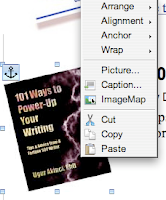
2) Select the Image Map to display the Image Map Editor:
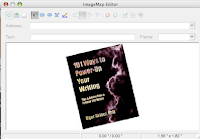
3) Select one of the 4 image map buttons on the menu bar: Rectangle, Ellipse, Polygon, Freeform Polygon. My favorite is Polygon and I'll select that one for this exercise.
4) Draw the polygon you like around the image. The edges of the polygon will be marked with a dotted-line:
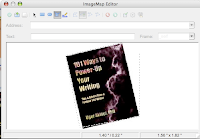
5) Finish drawing the image map by double clicking your mouse. A grayed-out area will mark your image map.

6) In the Address field, type in the web address to which you want to link:
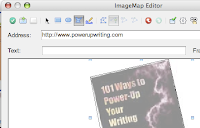
7) You can select from the following Frame options:
Named entries: File opens in a named frame in the current HTML document.
_self: File opens in the current frame.
_blank: File opens in a new page.
_parent: File opens in the parent frame of the current frame. If there is no parent frame, the current frame is used.
_top: File opens in the topmost frame in the hierarchy.
I prefer BLANK to the others since it leaves the source window intact.
8) Click the Apply button (green circle with a check mark in it).
If you'd like to save this image with this image map you can save it by clicking the Save button (third from left -- the one that looks like a Mac hard drive).
9) Click the Close screen button (red circle with a X in it) and your Mac will prompt you if you'd like to save the changes. Click Yes and you're done.

2) Select the Image Map to display the Image Map Editor:

3) Select one of the 4 image map buttons on the menu bar: Rectangle, Ellipse, Polygon, Freeform Polygon. My favorite is Polygon and I'll select that one for this exercise.
4) Draw the polygon you like around the image. The edges of the polygon will be marked with a dotted-line:

5) Finish drawing the image map by double clicking your mouse. A grayed-out area will mark your image map.

6) In the Address field, type in the web address to which you want to link:

7) You can select from the following Frame options:
Named entries: File opens in a named frame in the current HTML document.
_self: File opens in the current frame.
_blank: File opens in a new page.
_parent: File opens in the parent frame of the current frame. If there is no parent frame, the current frame is used.
_top: File opens in the topmost frame in the hierarchy.
I prefer BLANK to the others since it leaves the source window intact.
8) Click the Apply button (green circle with a check mark in it).
If you'd like to save this image with this image map you can save it by clicking the Save button (third from left -- the one that looks like a Mac hard drive).
9) Click the Close screen button (red circle with a X in it) and your Mac will prompt you if you'd like to save the changes. Click Yes and you're done.
Saturday, December 6, 2008
NeoOffice Recovery Procedure
 NeoOffice works pretty well on my MacBook. Actually I've finished a 30 page report on Article Marketing, complete with a full-color cover.
At some point NeoOffice just froze up. I force-quit the application. When I restart it, it presents this beautiful recovery window and recovers every document that was not properly saved when I force-quit. Great functionality. MS Word has it too but NeoOffice is free, including its frequent upgrades. Last time I checked, MS Word wasn't.
BTW -- to take the screen shot of any window, icon or image on a Mac -- press Shift + Command (Apple) + 4 and then hit the SPACE BAR and Mac will display a CAMERA icon. Place "your camera" over the visual element and click it! Presto. The screenshot is automatically saved on your Desktop. That's how I captured the screenshot you see above. You do not need to buy a screenshot software if you've got a Mac.
Subscribe to:
Posts (Atom)


 Posts
Posts


